Description
The Sequence Builder is an easy-to-use, streamlined program that drastically simplifies building sequence tables. Large tables in ChemStation quickly become long and tedious, since each line is built by hand and the same sample location, method and other details are entered again and again. The Sequence Builder gives you a compact interface where method parameters are defined once, then creates and saves a .CSV file of the full sequence table that imports directly into ChemStation.
It has several modes of operation: Simple, Simple+Add and Multiple. Each is specialized for a different combination of how many samples you want to screen, how many columns you have and how many methods you plan to use.
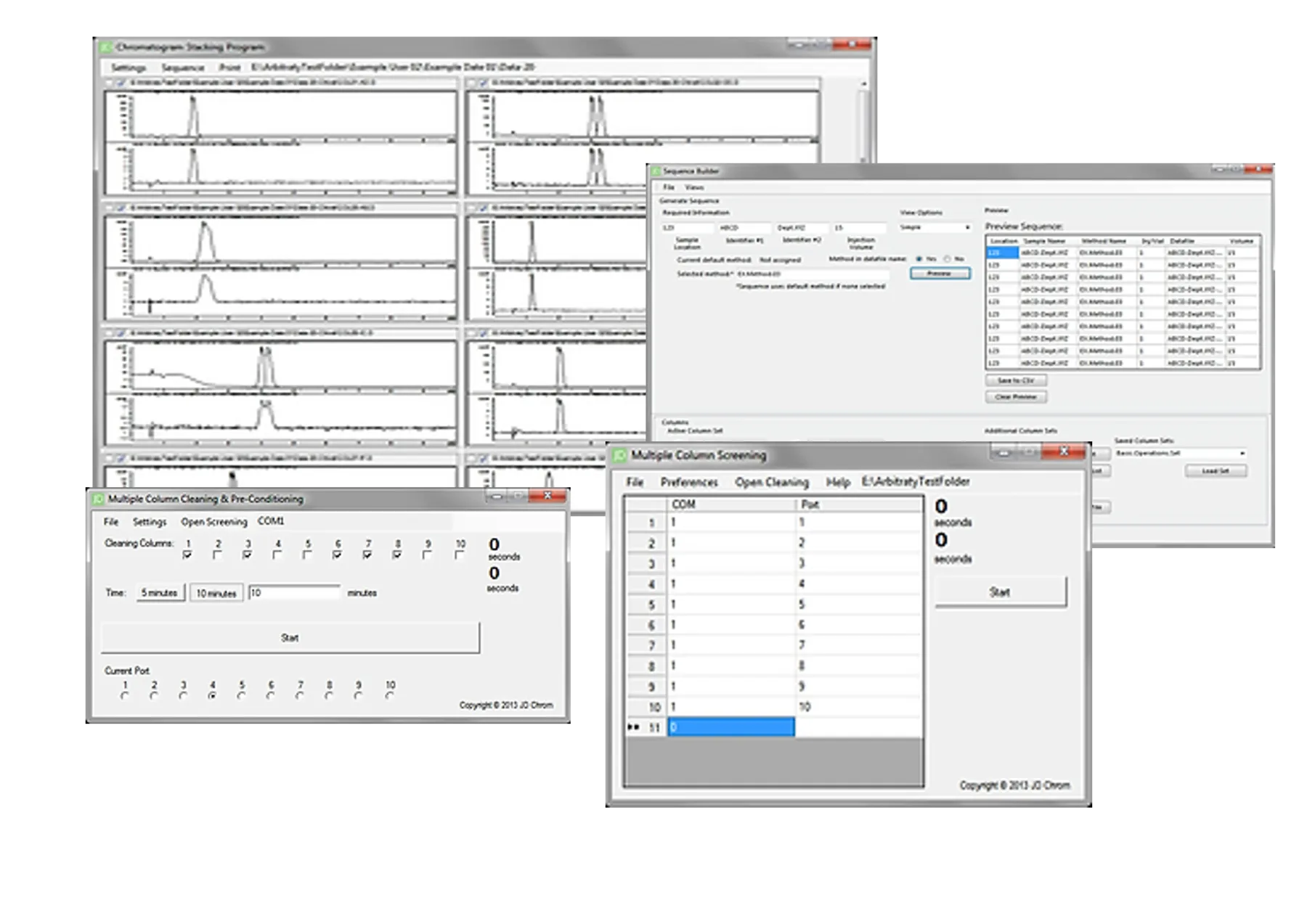
It is great as a standalone product, and gives an even greater boost to productivity alongside the MCCPS System. For the full list of features, download the Sequence Builder user's manual from the Downloads page.
This guide walks through the Simple mode:
- Entering method information
- Entering column information
- Entering sample information
- Previewing and saving the sequence table
- Importing the .CSV into ChemStation
Entering method information
In this example you have one sample, one method and ten columns to screen, and want a sequence table that injects the sample through each of the ten columns.
The Simple mode is ideal here. Select it from Views › Simple on the menu bar, or choose Simple from the View Options drop-down at the top center of the window.
To import your ChemStation methods, open the Available Methods tab at the bottom left. Click Browse on the right of the tab, find and select the folder ChemStation uses to store its methods, and click OK.
The folder now appears in the text box beside the Browse button. Click Import Methods to bring the methods into the All Available Methods list on the left, then double-click the method you want. The selected method is shown above.
This tab also lets you save all imported methods, set a default method and add methods to your favorites.
Entering column information
Open the Available Columns tab at the bottom left and enter descriptive column information in the Active Column Set box.
This tab also lets you set the current set as default, load the default set, save the current set, import a previously saved set and load a saved set into the active column set.
Entering sample information
In the Required Information box at the top left, enter the sample location, injection volume and descriptive text for Identifiers #1 and #2 to keep track of injections.
Previewing and saving the sequence table
With a method selected and the column and sample information defined, click Preview near the top center of the window to preview the sequence table.
Click Save to CSV to save the previewed table as a .CSV file. You can open it in Excel to double-check it; after resizing the cells it looks like this:
Importing the .CSV into ChemStation
In ChemStation, click Sequence › Import Sequence to open the Sequence Import window. In Step 1, Import Configuration, browse for and select the saved .CSV file, then click Finish.